Please note that a self-conducted microcode firmware update is always at your own risk.
Download the latest AKCP firmware update for the securityProbe. Please save the corresponding firmware update of your AKCP Alarm Server locally on your computer.
In the securityProbe web interface, under the Settings menu, please back up the configuration of the securityProbe before the firmware update.
Please log in to the web interface of the AKCP securityProbe Alarm Server and select the "Setup" menu. Then click on the "Maintenance" field of the securityProbe.
Click on the "Upgrade" field and confirm that you want to perform a firmware upgrade of your AKCP securityProbe. Once you press the "OK" button, the securityProbe will initiate an automatic reboot in safe mode.
In safe mode, a so-called "Safe Mode" page will be displayed on the AKCP securityProbe.
Please note that the process in the securityProbe's safe mode can take several minutes.
We kindly ask for your patience.
Using the "Browse" button, you can now specify the location of the AKCP firmware file you downloaded.
Once you have clicked the "Upgrade" button, a new window with a progress bar will open.
Important:
The duration of the AKCP securityProbe firmware update can take up to 30 minutes.
During this time, the power supply to your AKCP securityProbe must not be interrupted under any circumstances.
After a successful firmware update, you will receive the message "Complete" and the securityProbe will be restarted.
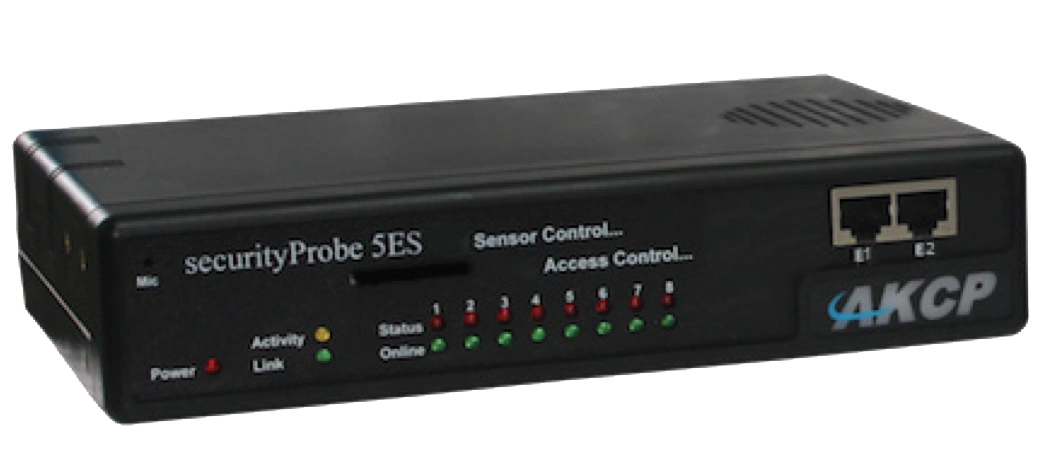
Professional AKCP securityProbe5ES-X20 Alarm Server with twenty potential-free contacts for reliable environmental monitoring in critical IT infrastructures.