


Didactum Monitoring Systems
Create & Configure Notifications
Complete guide for setting up all notification types: Email, Telegram, SMS, SNMP Trap, HTTP Request, Phone Call and Macros – for all Didactum devices.
Email Notification
▼Email notifications can be sent automatically in case of events such as a temperature rise. Up to 20 email elements can be created (up to 20 recipients or recipient groups). To set this up, you need access to the Didactum web interface.
Create Email Element
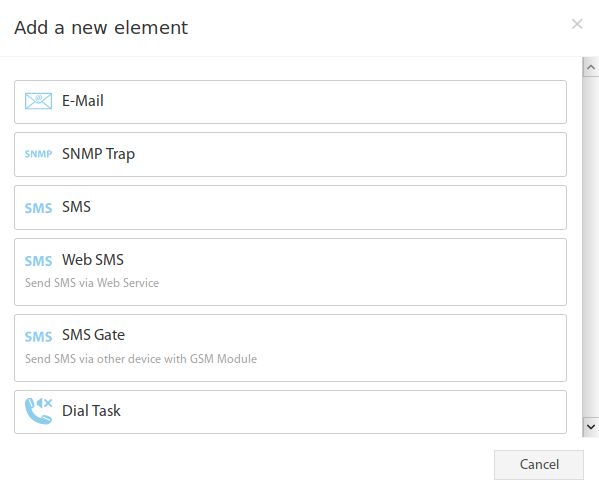
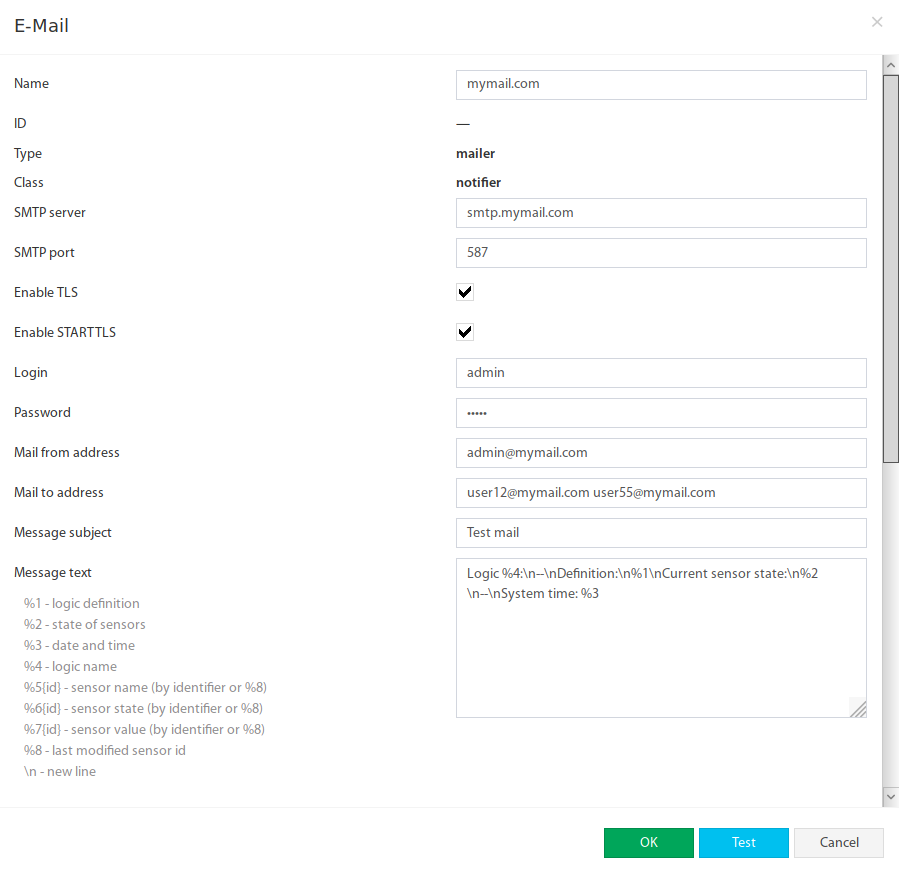
In the system tree menu at the top right, click the + symbol and select the element “Email”. Then fill in all parameters:
 🔍 Zoom
 🔍 Zoom
%3, %4, %5, %6, %7.Parameters Overview
| Parameter | Description |
|---|---|
| Name | Name of the element in the system |
| SMTP Server | Name or IP address of the SMTP server (e.g. smtp.gmail.com) |
| SMTP Port | Port number of the SMTP server (e.g. 25, 465, 587) |
| Enable TLS | Session is opened within an encrypted connection (typical port 465) |
| Enable STARTTLS | Encrypted connection is opened within the SMTP session (typical port 587) |
| Enable SSL | Enable or disable SSL |
| Login / Password | SMTP username and password |
| Mail from | Sender email address (e.g. alarm@mycompany.com) |
| Mail to | Recipient email address(es), up to 10. Separate with spaces, commas or semicolons |
| Subject | Custom subject. For exact text put in square brackets: [My Subject] |
| Message | Message text, can contain macros (e.g. %3, %4, %5, %6, %7) |
Didactum500T-serverroom_A12 'Alarm-Mail' notice. Contact your email administrator for SMTP questions.Recommended Settings for gmail.com
| Parameter | Value |
|---|---|
| SMTP Server | smtp.gmail.com |
| SMTP Port | 587 |
| Enable TLS | Yes |
| Enable STARTTLS | Yes |
| Login | Your full Gmail address including @gmail.com |
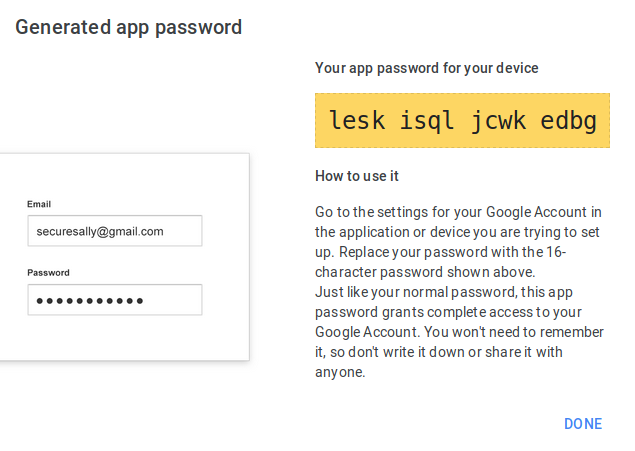
| Password | Your password (or App Password if 2-Factor Authentication is enabled) |
| Mail from | Your Gmail address |
| Mail to | Recipient address(es), up to 10, separated by space/comma/semicolon |
Microsoft 365 / Exchange
Since Didactum devices are considered embedded systems, global mail servers (Microsoft 365, Exchange) may reject the sending. Please refer to the Microsoft documentation for setting up multifunction devices for email sending.
Using SMTP Relay Services
If sending via public mail servers causes problems, free SMTP relay services (e.g. Mailjet) can be used. Register with the service and get the SMTP settings from My Account → SMTP and API Settings.
Google 2-Factor Verification (App Password)
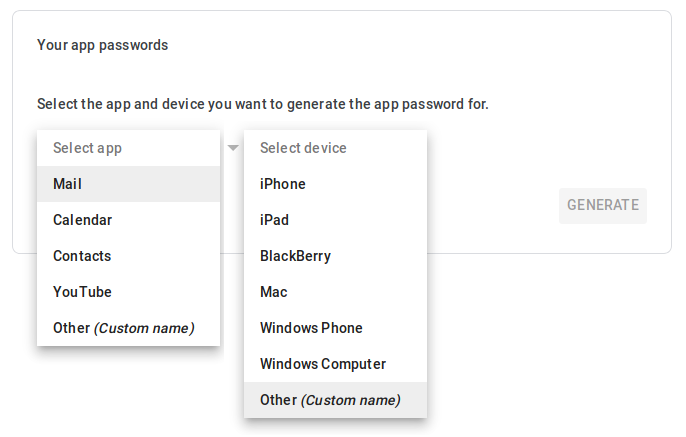
Google blocks access with a regular password for third-party applications. Enable 2-Step Verification and create an App Password – enter this in the “Password” field.
 🔍 Zoom
 🔍 Zoom
Telegram Notifications
▼Telegram notifications are suitable for urgent messages. Currently only text messages are supported. A prerequisite is your own Telegram bot.
Step 1 – Create Telegram Bot
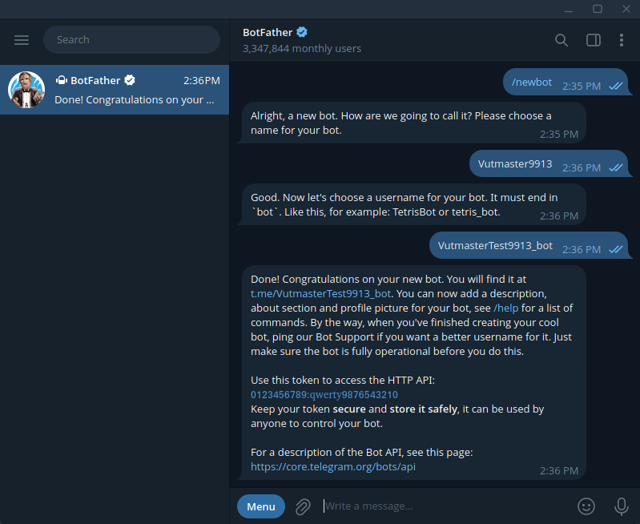
Write to @BotFather (official Telegram service) in Telegram and send the command /newbot. Follow the instructions: @BotFather asks for a display name and a username (must end with bot). You will then receive an API Token – keep it safe.
 🔍 Zoom
Step 2 – Activate Bot (START)
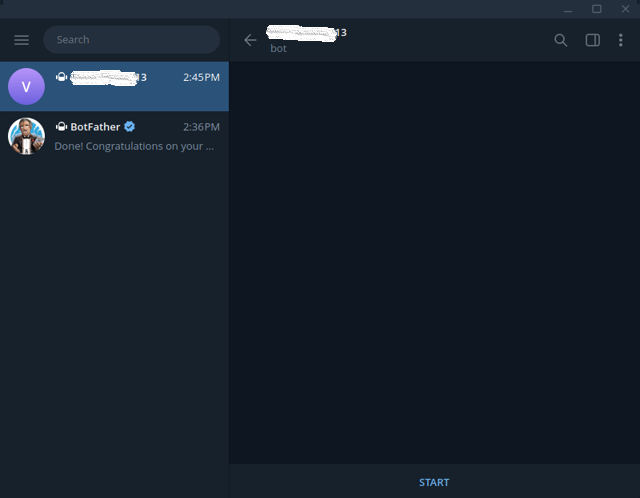
Follow the link provided by @BotFather (e.g. t.me/MyBot_bot) and click START in the appearing window or send the command /start. Only then is the bot ready to send.
 🔍 Zoom
Step 3 – Configure Telegram Element in Didactum
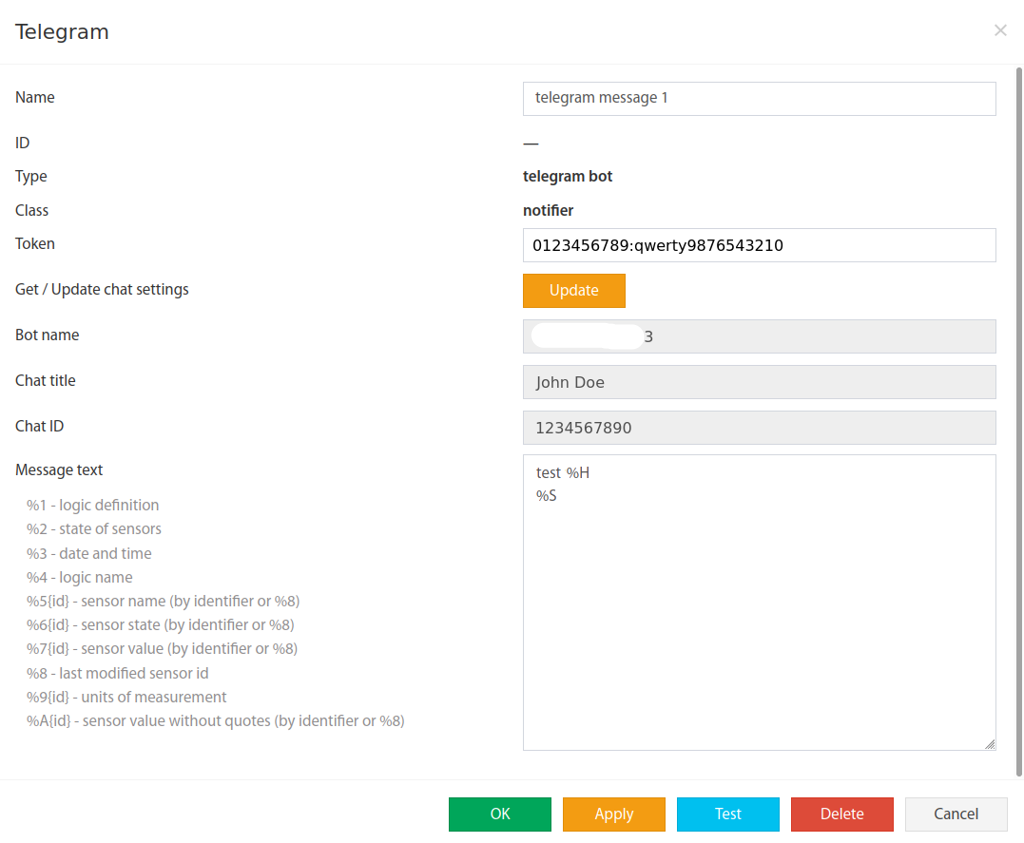
In the system tree menu go to + Symbol → “Telegram” and fill in the parameters:
| Parameter | Description |
|---|---|
| Name | Name of the element in the system |
| Token | Telegram API Token from @BotFather |
| Message Text | Text of the message, can contain macros (e.g. %3, %4, %5, %6, %7) |
 🔍 Zoom
- Enter token from @BotFather.
- Click “Update” – Didactum reads Bot Name and Chat Title automatically.
- Check whether Bot Name and Chat Title are correct.
- Use “Test” to send a test message – it should appear in the chat.
- Finish with “Save”. Don’t forget to save the system settings at the top right.
SNMP Trap Notification
▼When a Didactum unit detects an error or a state change, it sends a notification to one or more trap receivers at a defined IP address. SNMP Traps are triggered exclusively via logic circuits or group notifications. All Didactum monitoring systems support SNMP Trap.
Create SNMP Trap
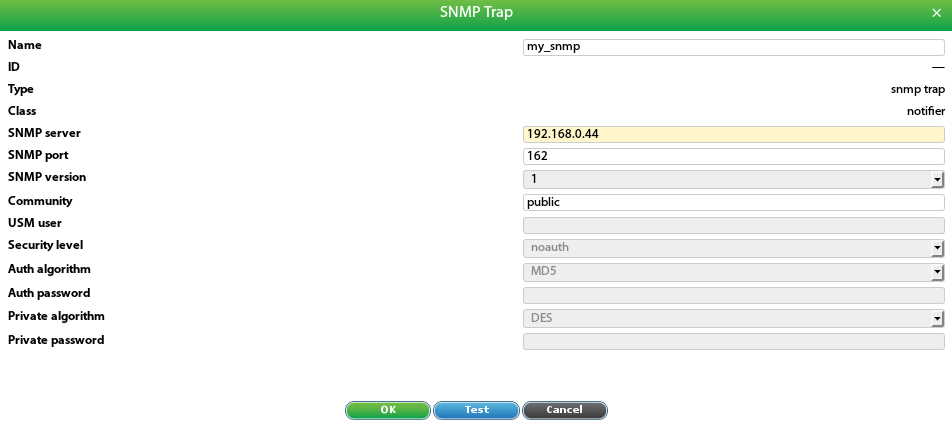
In the system tree menu go to + Symbol → “SNMP Trap” and fill in the parameters:
 🔍 Zoom
| Parameter | Description |
|---|---|
| Name | Name of the element in the system |
| SNMP Server | IP address of the SNMP Trap receiver (e.g. 192.168.1.10) |
| SNMP Port | SNMP port (usually 162) |
| Version | SNMP version: v1, v2c or v3 |
| Community | Community name (e.g. public) |
| USM User | Username for SNMP v3 |
| Security Level | noauth – username only; auth – with authentication; priv – with authentication and encryption |
| Auth Algorithm / Auth Password | For v3 with security level “auth” or “priv” |
| Priv Algorithm / Priv Password | For v3 with security level “priv” |
Example: SNMP Trap Content
Phone Call Task (Dial Task)
▼Dialing a phone/mobile number alerts a person to events in the system. Since a call does not contain additional information (voice messages are not supported), it is recommended to combine it with an SMS or Email.
Create Dial Task Element
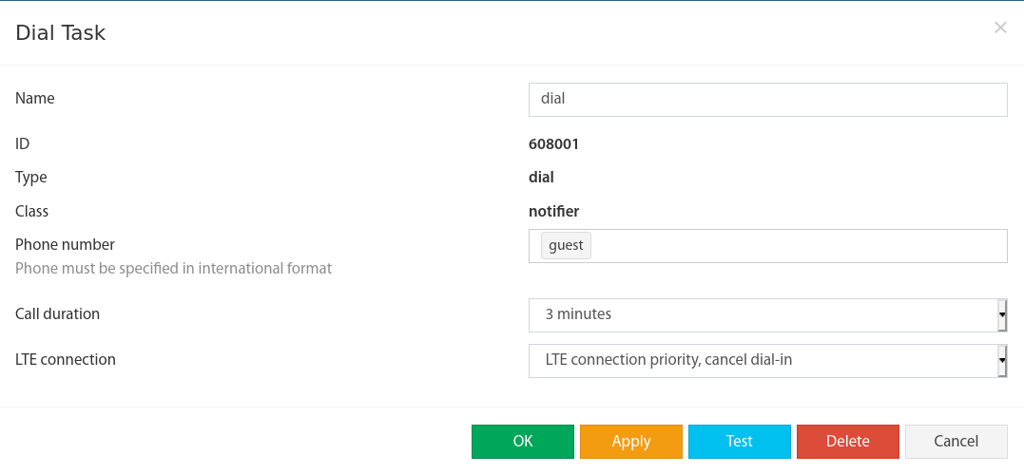
In the system tree menu go to + Symbol → “Dial Task” and fill in the parameters:
 🔍 Zoom
| Parameter | Description |
|---|---|
| Name | Name of the element in the system |
| Phone Number | Recipient phone number – only one number per element |
| Call Duration | Duration of the call in seconds. Too short values prevent connection establishment. The maximum duration is often limited by the network operator. |
| LTE Connection | LTE priority, cancel call – call is not executed if LTE is active (default). Disconnect connection during call – LTE is disconnected for the duration of the call and restored afterwards. |
HTTP Request
▼With the HTTP Request you can send data to any server. The server response is not evaluated. Didactum supports only single-stage requests – login and password (or token) must be included in the same request. Separate login requests are not supported. Use cases: Integration with PSIM systems, SCADA software or your own servers.
Create HTTP Request Element
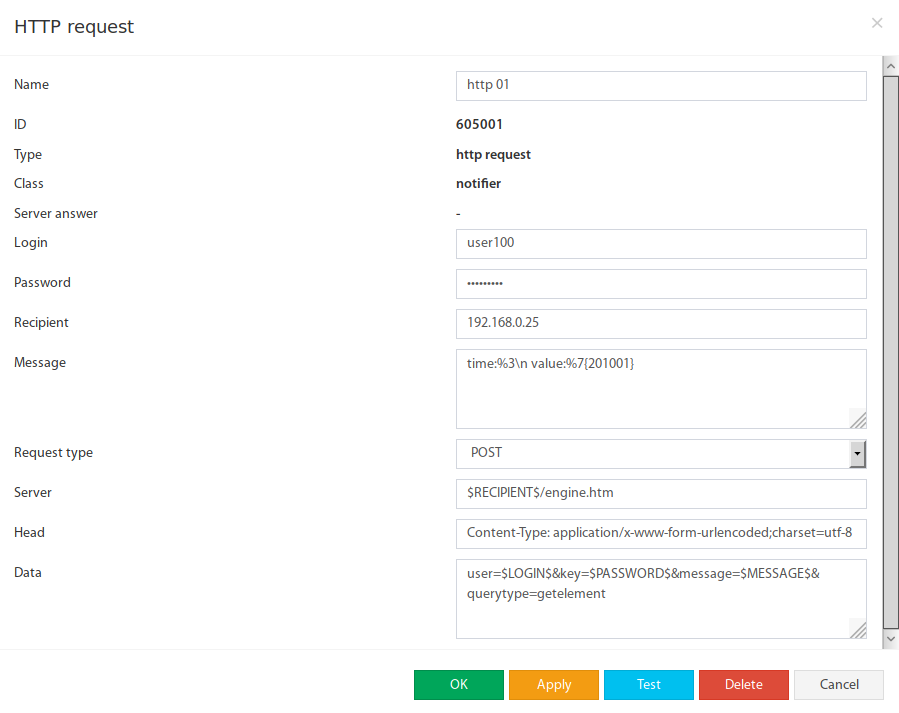
In the system tree menu go to + Symbol → “HTTP Request” and fill in the parameters:
 🔍 Zoom
| Parameter | Description |
|---|---|
| Name | Name of the element in the system |
| Login | Login string, can be used as macro $LOGIN$ |
| Password | Password as plain text $PASSWORD$, MD5 hash $PASSWORD_MD5$ or SHA-1 hash $PASSWORD_SHA1$ |
| Recipient | Recipient address string, can be used as macro $RECIPIENT$ |
| Message | Message text, can contain %-macros (%1 to %8, \n for line break) |
| Request Type | HTTP method: GET, POST, DELETE, PUT |
| Server | Server URL, can contain $-macros |
| Header | Request header, multiple entries separated by line break or \n |
| Data | Data field, can contain $-macros |
Sending Sensor Data in JSON Format
- Fill in target server and request type (e.g.
POST). - In the “Header” field enter:
Content-Type: application/json - In the “Data” field enter the macro
$MESSAGE$. - In the “Message” field define the JSON structure with %-macros (e.g.
{"sensor":"%5","status":"%6","value":"%A","time":"%3"}). - Optional: Use a timer to send data at scheduled times.
$MAC$ returns the MAC address of the unit and is suitable as a unique system identifier in HTTP requests.Macros in Notification Texts
▼Macros significantly increase the information content of notifications. At the time of sending, macros are automatically replaced by the corresponding information: event time, sensor name, sensor value, logic name, state description, sensor ID and more. Macros are indicated by a percent sign and a number or letter.
Available Macros
| Macro | Description | Example Value |
|---|---|---|
%1 | Verbal description of the triggered logic | if 'Onboard Temperature' in state 'high alarm'; then ... |
%2 | State of the logic elements at the time of triggering | 'Onboard Temperature' (id=201001) in state 'high alarm' |
%3 | Trigger time of the logic circuit | 11:32:28 2024/06/13 |
%4 | Name of the logic circuit | 'Logic_Temp_01' |
%5 | Name of the sensor that triggered the logic | 'Onboard Temperature' |
%6 | State of the triggering sensor | 'high alarm' |
%7 | Sensor value at the time of triggering (with quotation marks) | '27.60' |
%8 | ID of the triggering sensor | '201001' |
%9 | Unit of the sensor (if available) | °C |
%A | Sensor value without quotation marks | 27.60 |
%H | Hostname of the system (or IP address if default hostname) | serverroom_A12 or 192.168.0.101 |
%S | Full system description: device type, firmware, hostname, IP | System: Didactum 500T Firmware: 7.2.3 Hostname: host_a12 IP: 192.168.0.101 |
%M | MAC address of the current unit | 7A:D8:4F:31:18:54 |
Macros with Parameterization by Sensor ID
The macros %5, %6, %7, %9, %A can be parameterized with a specific sensor ID to retrieve values of a particular sensor. The ID is placed directly after the macro in curly brackets:
| Macro | Description | Example |
|---|---|---|
%5{id} | Name of the sensor with the specified ID | %5{201999} → 'Onboard Temperature' |
%6{id} | Status of the sensor with the specified ID | %6{201999} → 'normal' |
%7{id} | Measured value of the sensor with the specified ID | %7{201999} → '26.50' |
%5{%8} | Sensor name of the triggering sensor (combined macro) | 'Analog-2-WATER' |
%6{%8} | Status of the triggering sensor by ID | 'alarm' |
%7{%8} | Value of the triggering sensor by ID | '1' |
Default Message Text (Template)
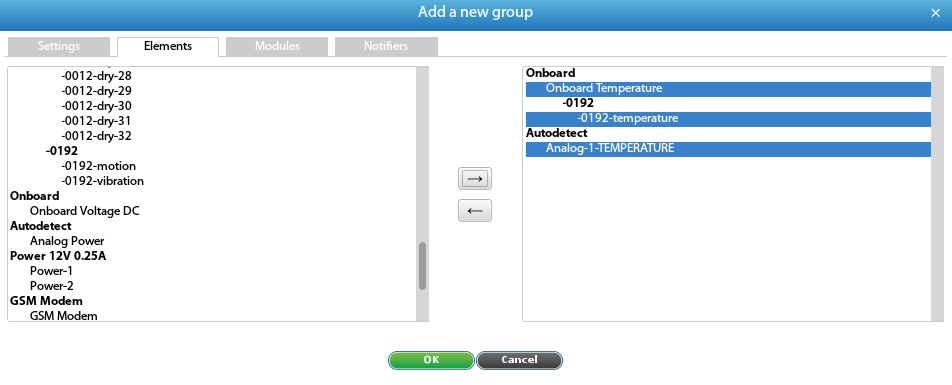
Macros in Group Notifications
 🔍 Zoom
%1 and %2 have no meaning (no logic circuit). %4 returns the group name, %5/%6/%7 information about the triggering sensor.%1 and %2 are omitted.SMS Notifications
▼The Didactum monitoring unit can send SMS alarm messages with detailed information about the triggered sensor. An LTE expansion modem is required for this. Up to 20 SMS elements can be created (up to 20 recipients or recipient groups).
Create SMS Element
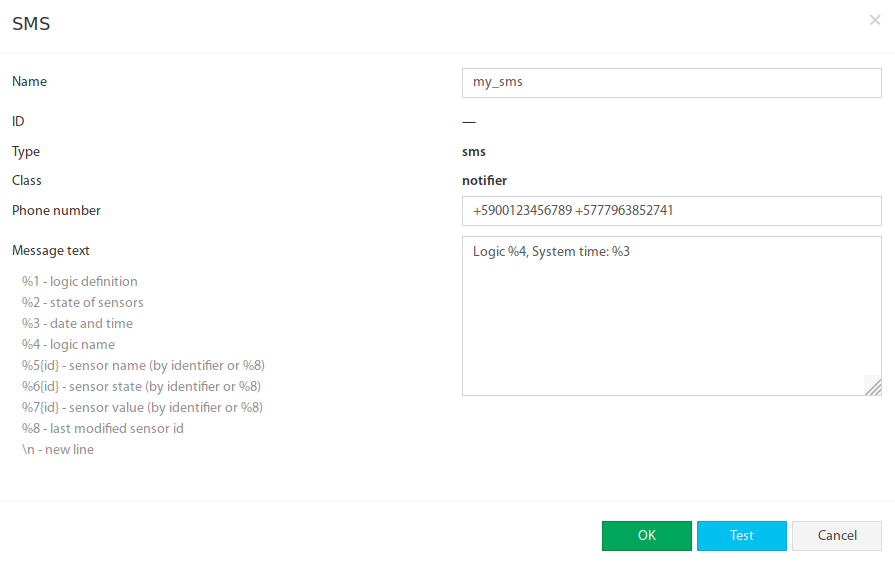
In the system tree menu go to + Symbol → “SMS” and fill in the parameters:
 🔍 Zoom
+49...), separated by spaces, commas or semicolons. When using “Test”, macros are filled with test values – for a real test the logic circuit must be triggered.| Parameter | Description |
|---|---|
| Name | Name of the element in the system |
| Phone Number | Phone number(s) in international format (+4915112345678), up to 10. Separate with spaces, commas or semicolons. |
| Message | SMS text, can contain macros. Recommended: short version as SMS length is limited. |
Recommended Short SMS Text
SMS via another Didactum Device (SMS Gate)
▼If several Didactum devices are used in the same network and at least one has an LTE modem, the other devices without a modem can also send SMS via the device with the modem.
Create SMS Gate Element
In the system tree menu go to + Symbol → “SMS Gate” and fill in the parameters:
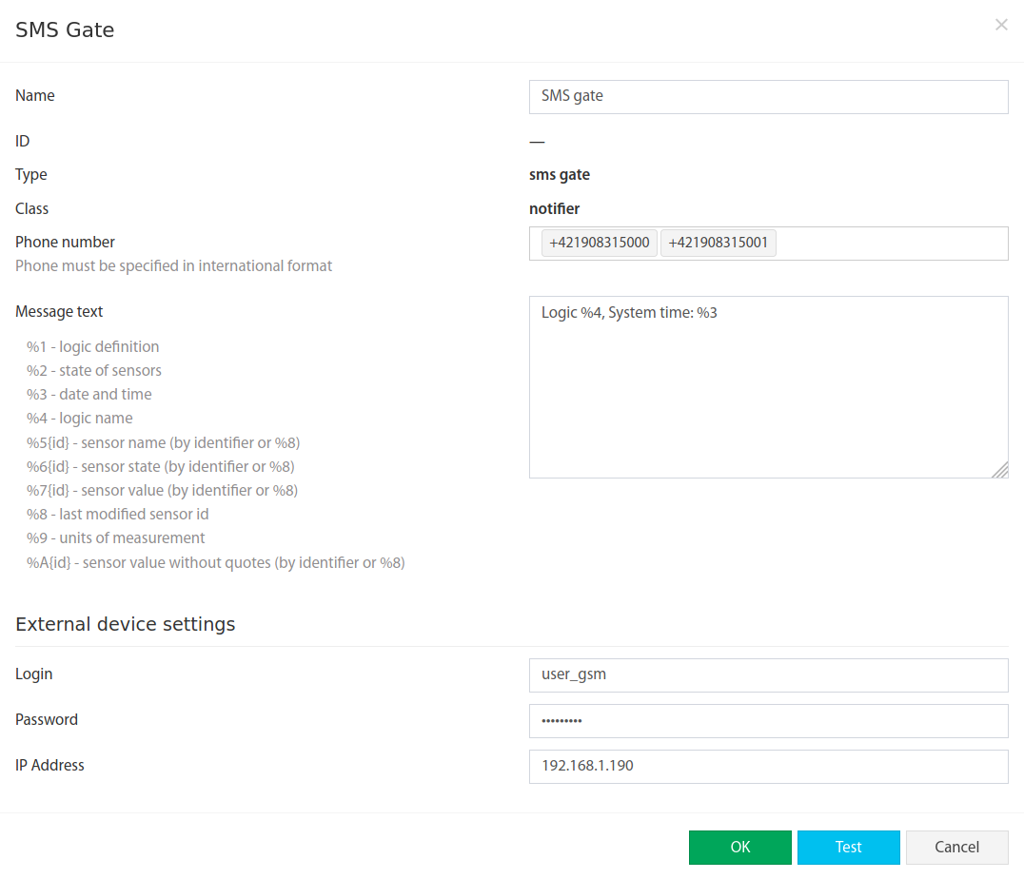 🔍 Zoom
https://192.168.0.101| Parameter | Description |
|---|---|
| Name | Name of the element in the system |
| Phone Number | Recipient phone number(s), up to 10, in international format. Separate with spaces, commas or semicolons. |
| Message | Message text, can contain macros |
| Login | Username on the Didactum device with GSM modem |
| Password | Password of the user on the device with modem |
| IP Address | IP address of the device with modem (e.g. 192.168.0.101 or https://192.168.0.101) |
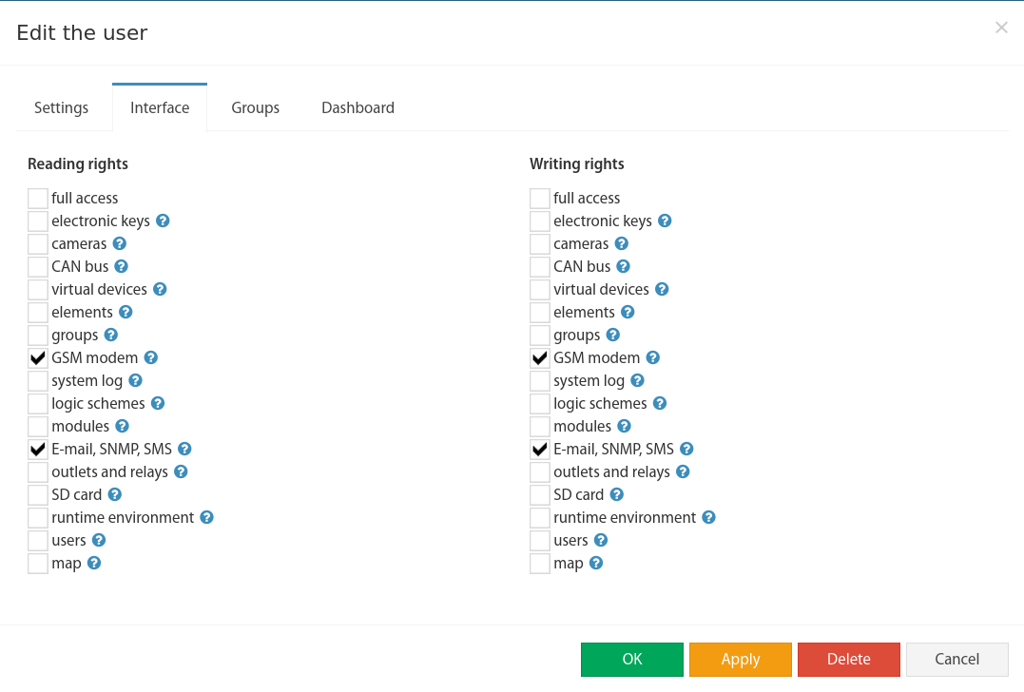 🔍 Zoom
SMS via Internet Service (Web-to-SMS)
▼SMS messages can be sent via special internet SMS services via Ethernet. The Didactum device sends a request to this service, which then sends the SMS to the recipients. Didactum offers a generic access mechanism suitable for most of these services. The API commands of the respective service are documented on its website.
Create Web-to-SMS Element
In the system tree menu go to + Symbol → “Web-to-SMS” and fill in the parameters:
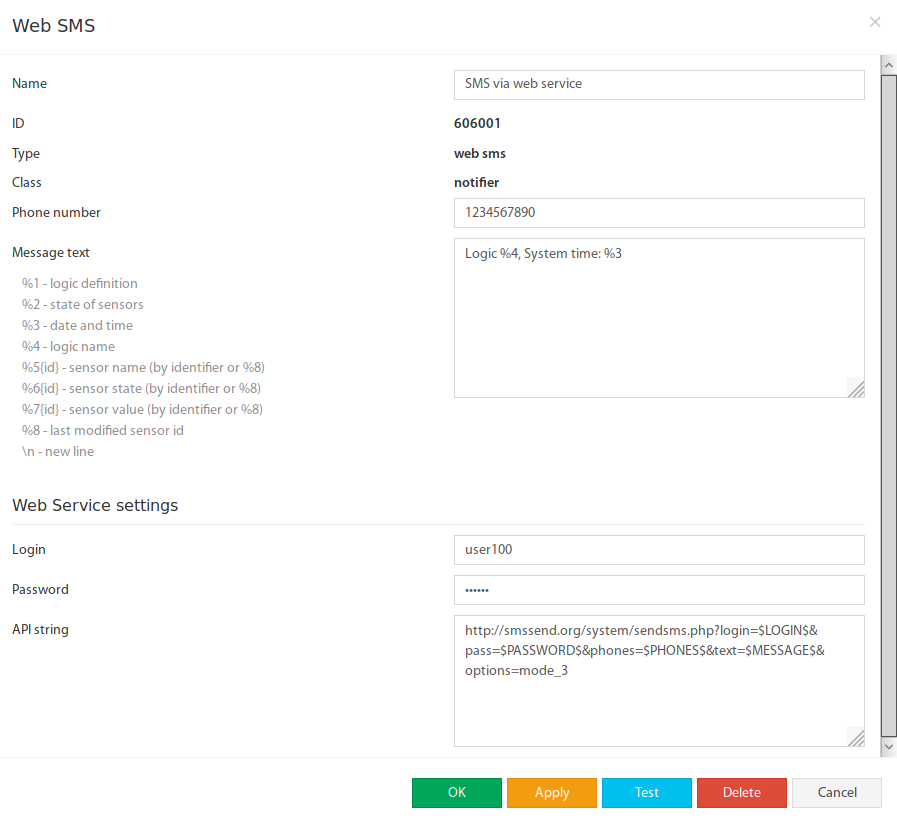 🔍 Zoom
| Parameter | Description |
|---|---|
| Name | Name of the element in the system |
| Phone Number | Recipient phone number according to the web SMS service documentation |
| Message | Message text, can contain macros |
| Login | Username at the web-to-SMS service |
| Password | Password at the web-to-SMS service |
| API String | API command line of the web SMS service (according to its documentation) |
Available $-Macros in the API String
| Macro | Description |
|---|---|
$LOGIN$ | Username (from the “Login” field) |
$PASSWORD$ | Password as plain text (from the “Password” field) |
$PASSWORD_MD5$ | Password as MD5 hash |
$PASSWORD_SHA1$ | Password as SHA-1 hash |
$PHONES$ | Recipient phone number(s) (from the “Phone Number” field) |
$MESSAGE$ | Message text (from the “Message” field) |
API String Example
Direct specification of all parameters in the string:
Recommended variant with $-macros – access data and message are taken from the form fields: